Help
How Plinky works, area by area — have a look wherever you're curious.
Every mark you meet in a score is explained in What the marks mean
Want to know why the music is written that way? How the music works
Looking something up mid-practice? Little tools
Never played a piano before? Start with Meet the keyboard
Welcome
Plinky is a piano trainer that turns practice into a game. You read the notes on the screen, play them, and Plinky says how it went. Everything runs in your browser — nothing is uploaded, your progress stays on your own device, and there is no account to make.
There are no version numbers here either. New builds install themselves quietly and only take over between pages, or when you come back to the tab — never in the middle of a run.
Getting started
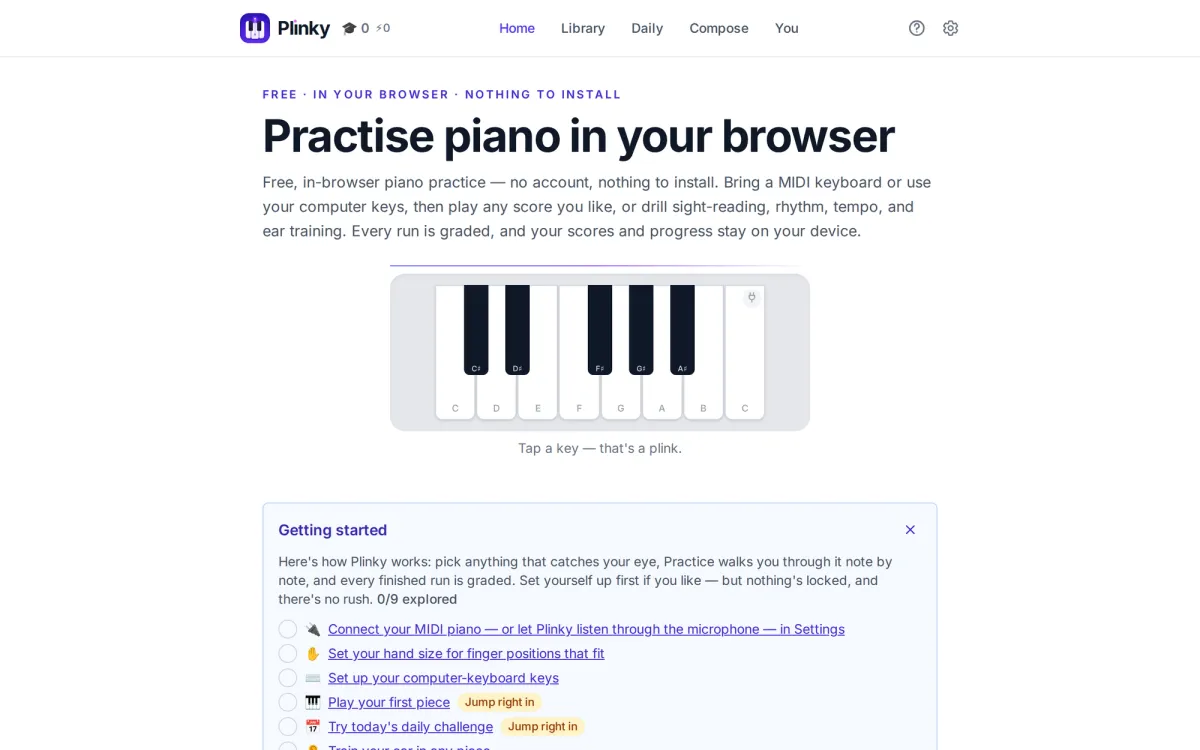
The first time you visit, the home page offers a Getting-started checklist that walks through a first session in order: set yourself up (connect a digital piano in Settings, then set your hand size and key mapping, so everything after is tailored to you), play a first piece or assignment, and find your level so Plinky knows where you actually read.
Steps that put your fingers on keys straight away are marked Jump right in, for when you would rather play now and fiddle with settings later.
No piano? Your computer keyboard and the on-screen piano both work. A digital piano just makes it comfier.
New to all of this: Meet the keyboard is a six-step tour that needs no piano, no cable and no reading. It shows you where the notes live before anything keeps score.
Already play: Find your level drops you past the beginner grades, so you start where you actually read.
Home
Your launchpad. Beside the Getting-started checklist, a Today panel lists the day's practice as one-tap links: pieces due for review, the daily challenge, and the next step of an open assignment — which jumps straight into that piece.
You may also see a small what's-new banner: a new piece, an announcement, a seasonal note. It is optional, and it goes away when you dismiss it.
Playing a piece
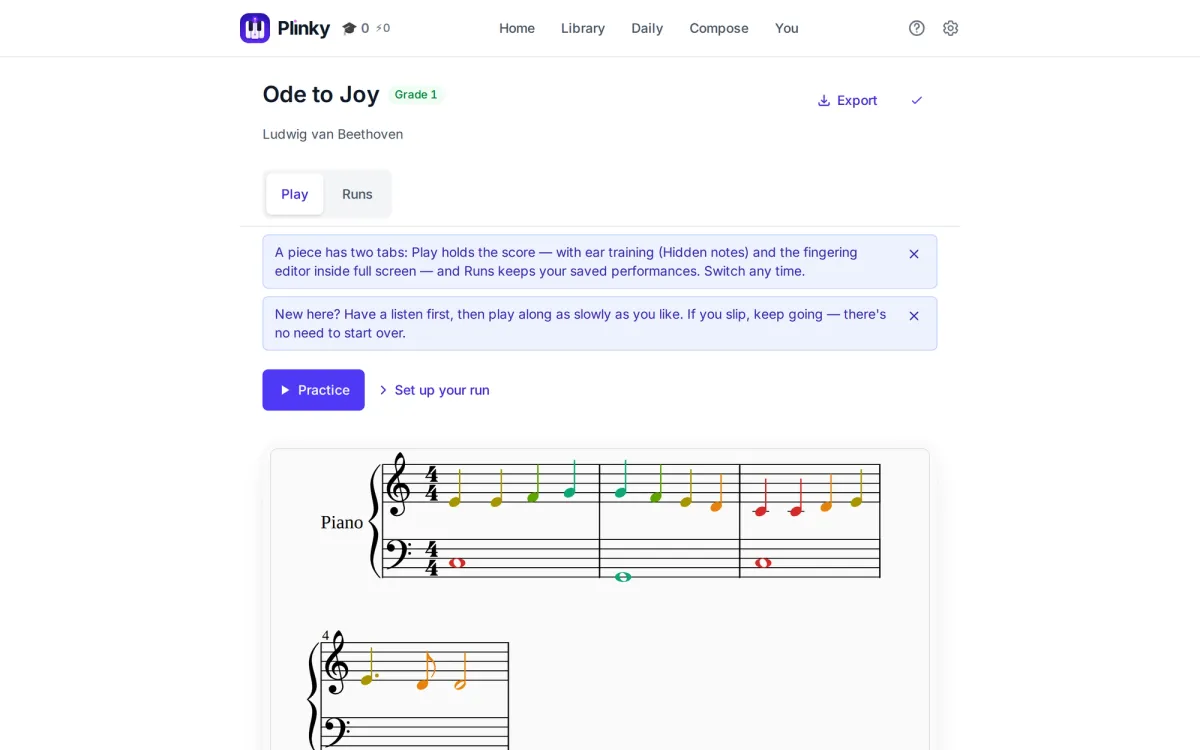
Open any piece from the Library, or one you imported, and Plinky engraves it as real notation. One button leads the way: Practice.
Every play page has two tabs — Play, the score and everything you do with it, and Runs, your saved performances. Practice drops you into full screen, just the score and the keyboard with the screen kept awake, and starts a note-by-note guide: read the note, play it, and the cursor moves on, sounding the note back the way you played it. A quick tap plays staccato, a held key sustains, and how hard you strike sets how loud it is. A MIDI piano, the on-screen keys and your computer keyboard all work, and no pedal is needed.
The controls in full screen: Listen plays the piece so you hear it first and hands off to Practice mid-phrase; Set up slides in the same panel you get before a run; Restart takes the run back to the top; the X leaves full screen, keeping your place; and Finger positions swaps the keyboard for the fingering editor.
Listen and Practice hand off to each other in both directions — let the computer play a tricky passage and take over mid-phrase, or play a while and hand it back. Your place is always kept.
As you play, the score keeps a record of how the run went. Blue is what the computer played, green is what you read cleanly, and amber is a note you found only after a wrong key, which flashes red. So a finished piece shows exactly where you hesitated, instead of a uniform green that forgets.
Setting up a run
Before a run — and behind the Set up button mid-piece — sits every reading aid and layout choice, grouped into cards.
Skill level is one choice that sets all the reading aids to match you; tweak any of them and it reads Custom. A new device starts at New starter, with every aid on.
How you play holds which hand you are practising (on a two-hand piece), whether Plinky fills in the hand you are not, keep-up, and the metronome. Reading aids holds note colour, the notes highway, hidden notes and finger numbers. Score layout holds follow-the-note scrolling, bars per row, treadmill reading, note size, bar numbers, beams, and other parts — which brings back a singer's or another instrument's staff, shown and sounded, never something you are asked to play. Extra challenge holds sight-reading, with a preview of 5, 10 or 20 seconds, and bars that disappear behind you as you leave them.
A few of those are worth knowing by name. The notes highway swaps the staff for a tall lane of falling notes coloured per hand, for seeing which key comes next without decoding the staff. Coloured notes make every C red and every D orange, so you read pitch by hue while the names sink in. Loop repeats the piece, or just a passage: tap two bars on the score and they fill red, or set the range by bar number, and Show only the looped bars re-engraves that stretch on its own, drawn big. Keep going means a missed note no longer freezes you — playing the next one moves the score along. Hidden notes start the noteheads blank for ear practice, revealing each as you find it. Finger positions opens the fingering editor, where every note arrives pre-fingered for your hand span and you can tap a note then a finger to override it, with bars washed red by fingering difficulty so the hard spots show. Keep up makes practice tempo-locked: after a one-bar count-in the cursor moves on the beat, ready or not.
Starting out: leave note colours and the notes highway on, slow things right down, and loop any bar that keeps tripping you up.
Further on: Sight-read this piece, under Extra challenge, steps every reading aid aside and gives you a few seconds to take the piece in, then one clean run. Your first read is saved as your sight-read and never overwritten.
How a run is graded
When you finish, a short flourish plays and the run is graded S to F from three things: accuracy, how many notes you found cleanly; timing, how evenly you held the rhythm — judged against your own tempo, so a steady run at any speed reads as in time; and flow, whether you kept moving like a musician.
Where the music is marked, an Expression reading joins them, for how closely you followed the written dynamics and articulation. It never changes your letter grade.
Afterwards a per-note strip and a tempo graph show where you rushed or dragged, and you can race a ghost of your best run — or a friend's, shared by link.
Library
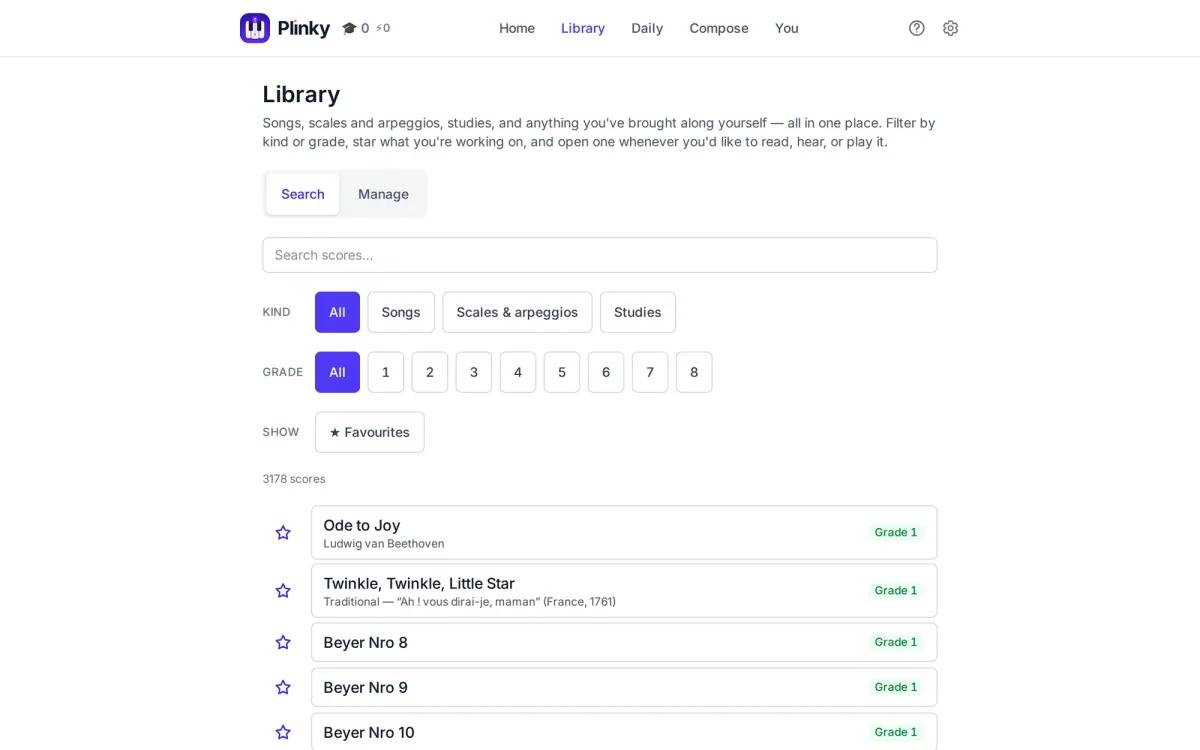
The catalogue of everything you can play, in two tabs.
Search is for finding something to play: search by name, star favourites, filter by kind, grade or what is due now, then open a piece. It comes stocked with scales, arpeggios, familiar tunes like Twinkle, Twinkle and Ode to Joy, and hundreds of real pieces.
Manage is for growing and safeguarding your library: add your own MusicXML scores, download a backup of your imports or of the whole local library with Plinky's built-ins included, and restore from a bundle.
Every piece credits its licence and source, and all of them are free to use commercially.
Starting out: filter by the lowest grade and pick a tune you recognise — a familiar song is far easier to learn.
Writing your own: drag in MusicXML files (.musicxml, .xml or .mxl) exported from MuseScore, Sibelius, Finale or Dorico. Preview the staff, set the grade and details, and it is playable and graded like any other piece.
Daily
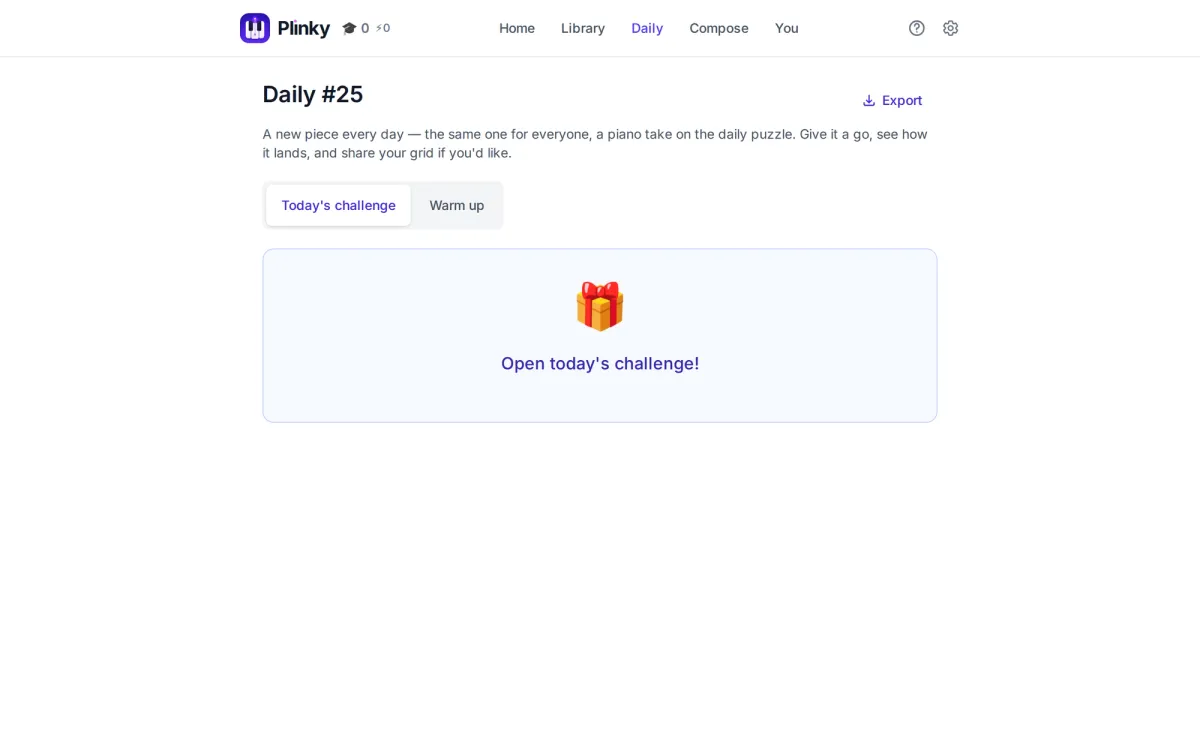
One freshly generated phrase, the same for everyone that day, graded and shareable as a grid. Play it whenever you like — there is no streak to keep up, and a day you have not played arrives as a little present to open.
The Warm up tab shapes unlimited fresh phrases of your own: key signature (any of 15, or every note in the octave), range across the 88 keys, one hand or two, chords of up to four notes, note values, a cap on the biggest jump, and a stay-close toggle. Nothing here is memorisable — every setting makes fresh notation on the spot.
The Export menu on the title line prints, or downloads MIDI or MusicXML.
Starting out: the Warm up tab with a small range and single notes builds confidence before the main challenge.
Ear training
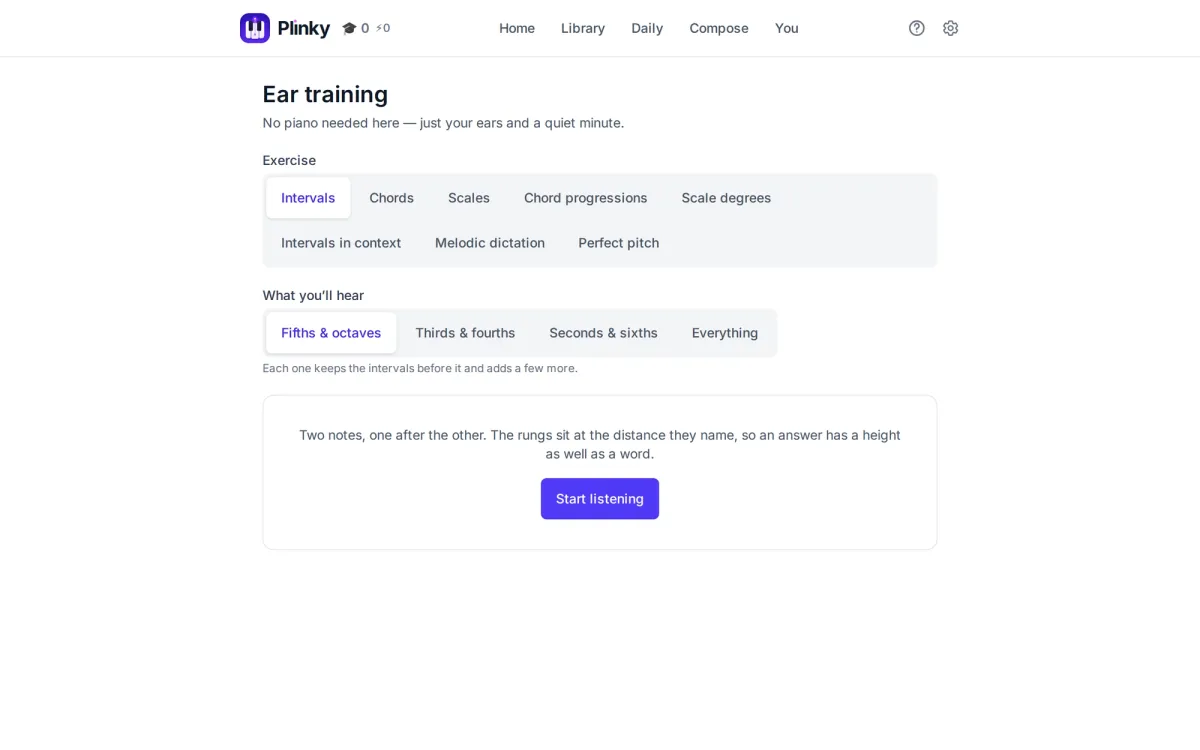
A page of its own for the days you are nowhere near a piano. Intervals name the distance between two notes on a ladder; Chords name a chord's quality; Scales name which scale played; Chord progressions name each chord by its Roman numeral; the functional exercises cover scale degrees, intervals in context and melodic dictation; and Perfect pitch names a single note on a keyboard.
A round is ten questions, and finishing one counts toward your grades just as playing a piece does. A miss shows you what played rather than marking you down.
Starting out: Intervals begins on fifths and octaves and fills in from there.
Compose
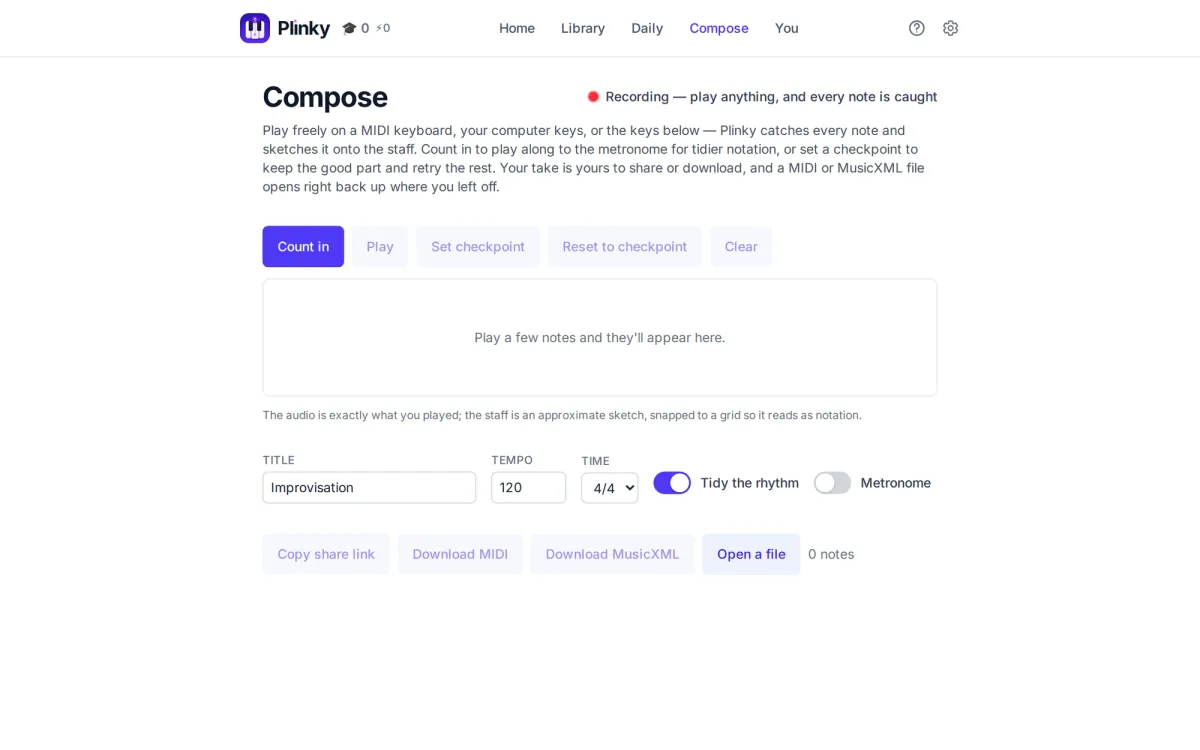
Play whatever you like — on a MIDI piano, your computer keys or the on-screen keyboard — and Plinky records every note and sketches it onto a staff as you go. The playback is exactly what you played; the staff is an approximate sketch, snapped to a grid so it reads as notation.
Count in drops into full screen, the only place the on-screen keys appear here, with a one-bar count-in. There is a metronome to play along to, and a checkpoint to keep the good part and retry the tail. A take can be shared by link or downloaded as MIDI or MusicXML, and a MIDI or MusicXML file opens back up here, so you can pick up where you left off on another device.
Writing your own: checkpoints build a piece section by section, and the MusicXML export carries it into your notation software for the details.
Assignments
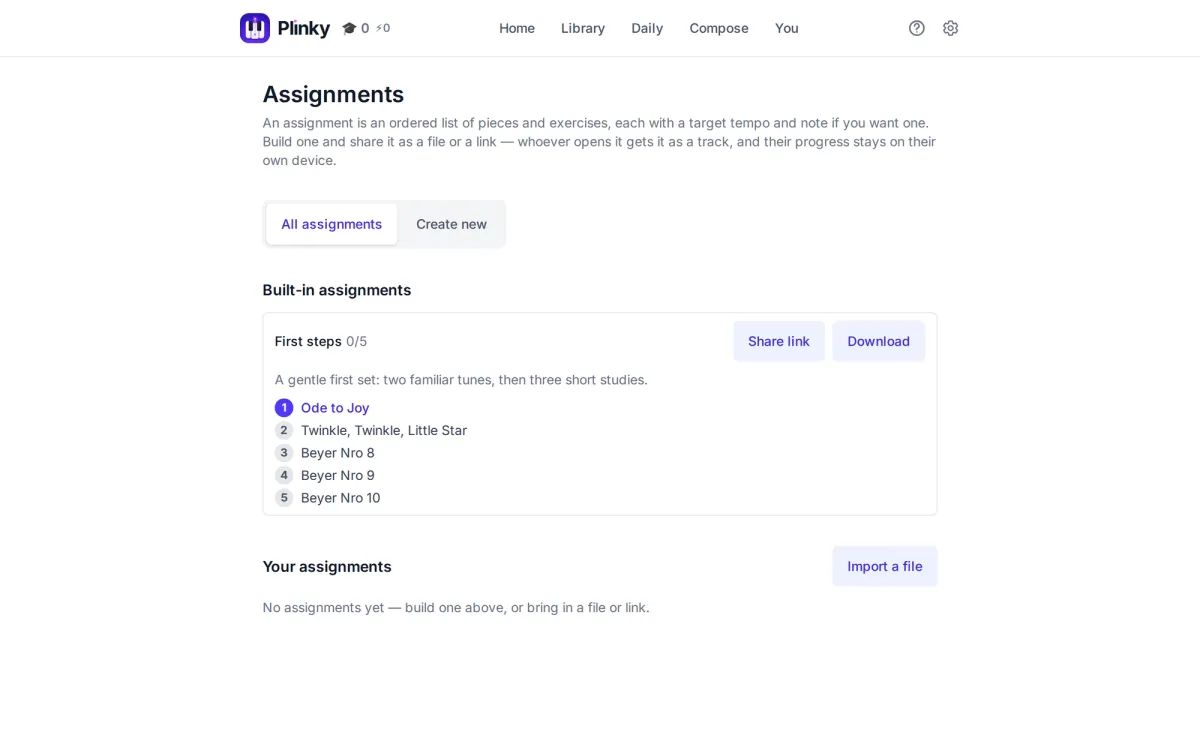
An ordered practice list, for a student or for yourself. A built-in First steps set for beginners is ready to play on day one.
To build your own: browse or search the catalogue, add pieces, drag them into order, and give each an optional target tempo and note. The whole set can carry a date you are working toward — a lesson, an exam, a recital — and its card counts down. Save it, edit it, share it by link or pass it around as a file; each piece checks off as it is learned.
For teachers: students hand results back by typing a name, which turns their device's progress into one code to paste into a message. Collect results reads those codes as a class table and downloads a CSV — it replaces transcription, not trust, and it is not proof. Assignments can also go out straight into Google Classroom.
You
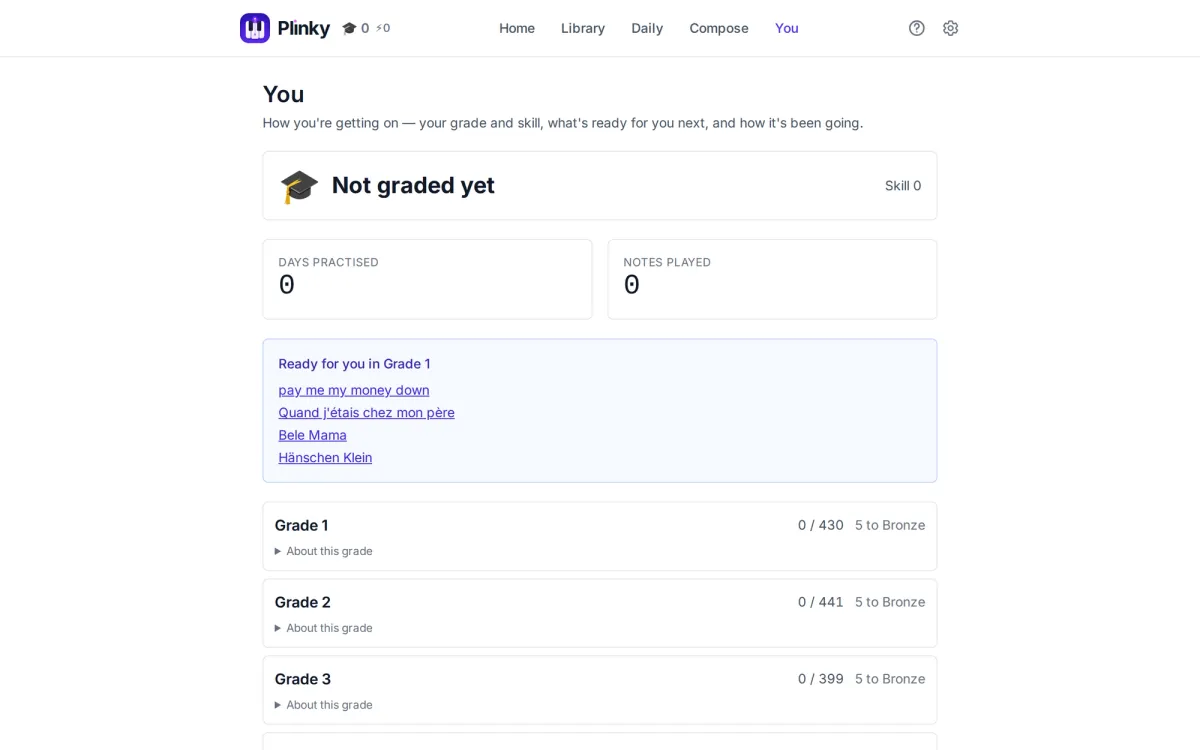
Your one progress page. It shows the grade you are at on the eight-grade ladder and what is left to reach the next, your skill rating, days practised and notes played, a slow-moving fingerprint of your accuracy, timing and flow, and the pieces due for review with a one-tap session.
You will also find Find your level, the placement test; the notes you take longest to find, which names the handful that consistently slow you down; Your practice, a diary rolled up over a week, a month, three months or a year with a shading grid showing where the practice went, where you can add hand-logged minutes and download the log as a spreadsheet; On the music stand, what you are working on and each piece's stage — learning, settling in, polishing, keeping it; and Achievements, every grade and badge you have earned, with the unearned ones shown as goals.
Gaps are fine. Plinky never counts streaks and never reproaches a missed day: a quiet week is simply drawn as a quiet week.
Review
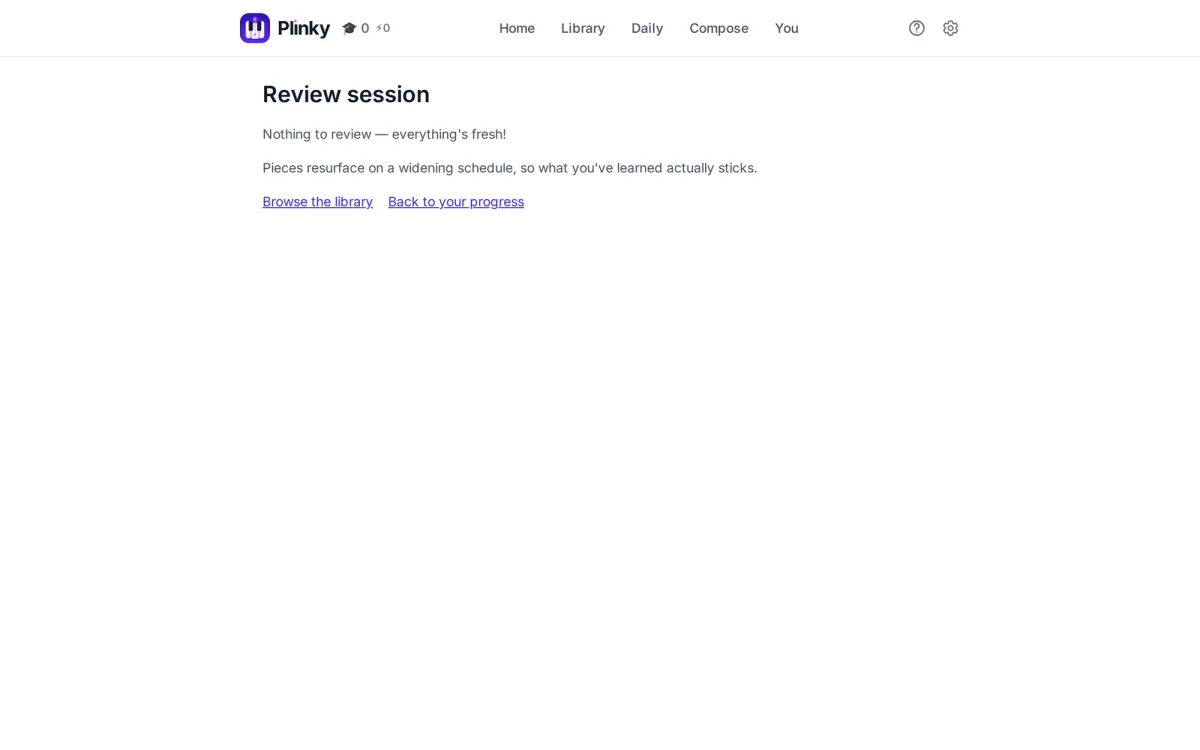
Once you clear a piece it enters spaced repetition, resurfacing on a widening schedule so that what you learn actually sticks. A one-tap review session walks you through everything that is fading, and anything you are not working on right now can be shelved. Ear-training exercises join the same queue.
The schedule is worth trusting: mixing pieces in one session is one of the six methods teachers recommend, which you can read about under Ways to practice.
Settings
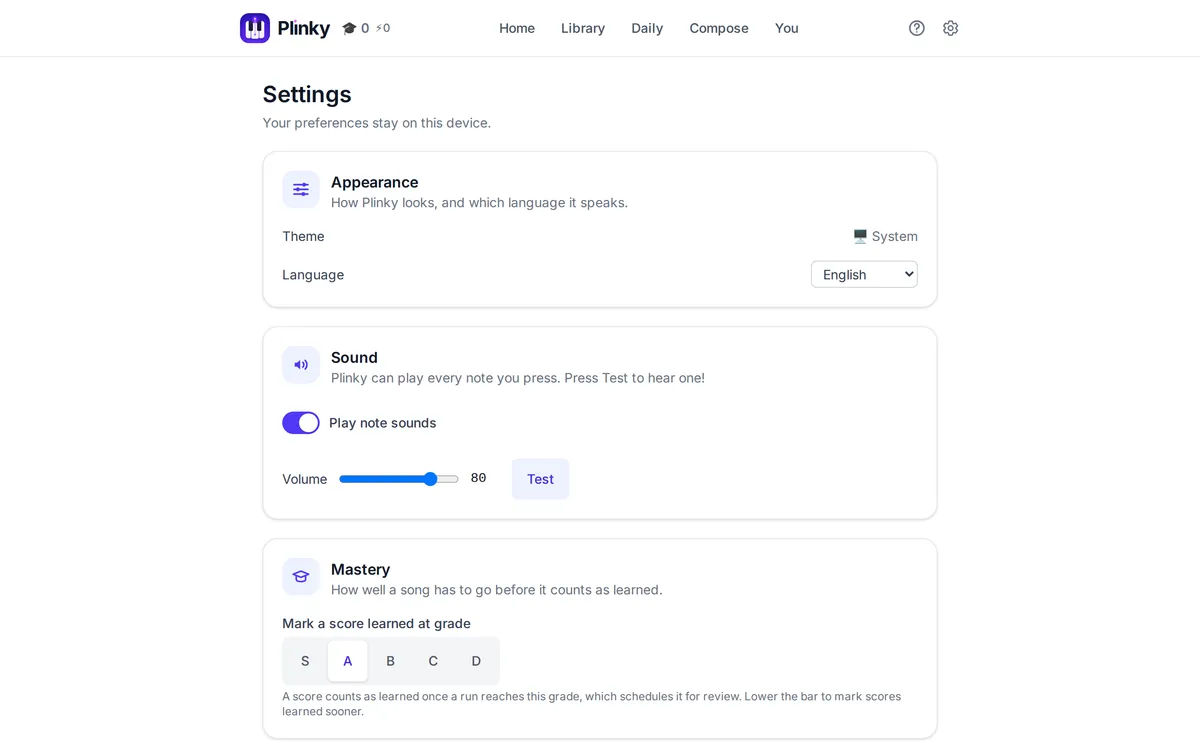
Where you make Plinky yours: pick and set up your instrument, tune the reading aids, say what counts as learned, and keep your progress safe.
Your instrument. Connect MIDI takes a digital piano over USB or Bluetooth and reconnects on its own next visit (Chrome, Edge and Firefox on desktop or Android — Safari and iOS have no Web MIDI). For an acoustic, or any piano at all, Start listening uses the microphone instead and works everywhere, iOS included; Tune to your piano is a short guided wizard — middle C, then a soft note and a firm one — that learns your room's noise floor, octave and loudness, and is worth running once per device.
On a computer keyboard, any playing key can be remapped. Out of the box the bottom row is the left hand — Z X C V B N M white, S D G H J black — and the top row the right — Q W E R T Y U white, 2 3 5 6 7 black — with an octave shift. Any unused key, the space bar included, can be bound to the sustain, sostenuto or soft pedal. The on-screen piano's width — one, two or three octaves, or the whole piece at once — sits in the practice tools on the play page.
Reading aids. Show the next note to play lights the keys to press and hints at how long to hold them, and can be set to always, only after a wrong key, or never. Note names on keys shows every key, only the Cs as landmarks, or none — and reads as do-re-mi in the languages where those are the real note names. Skill level and every reading preference live here too, matching the run panel: the ready-made combinations are New starter, Learning, Confident and Sight-reader, and changing anything makes it your own. Bars per row and note size find the fit for your screen; beams, racing your ghost and hidden notes come into their own further along. There is a metronome for when keeping time is the thing you are working on.
Starting out: keep the next note showing until a piece is familiar, then switch to after a mistake; keep the note names on the keys until the map is second nature, then drop to the Cs as landmarks. New starter with the beams hidden is a good place to begin. Telling Plinky how far each hand reaches also makes the suggested finger positions fit you.
Piano lights. If your piano lights its own keys, Follow along on my keyboard mirrors the notes as Plinky plays them during Listen, and Light the keys I'm about to play lights what is coming — Casio's MIDI In Navigate and Yamaha's Light Guide both work. Test the lights checks that everything agrees. Both are off until you ask for them.
What counts as learned. Every run is graded S, A, B, C or D, and Mastery is the lowest grade you want to count as learned. The grade settings say how gently or how strictly Plinky treats a piece you have been away from, and how many pieces a review session holds.
Your progress. Settings downloads everything as a single file — grades, review schedule, saved takes, fingerings, preferences, achievements and your score library — and restores it on another device exactly as it was. Restoring replaces what is on the device rather than merging, and always asks first. Nothing is stored online, so a backup file now and then is the only safety net if browser storage is ever cleared.
Helpful extras
A few more corners worth exploring. How the music works is a short eight-lesson course on the theory the app assumes, each lesson with something to play. What the marks mean is a glossary of every notation symbol, each with a Hear it button — and the setup panel lists the marks your own piece uses. Little tools holds a circle of fifths, scale and chord explorers, and a tap-tempo reader. Ways to practice covers six teacher-approved techniques, each linking straight to the Plinky control that does it.
A few things worth knowing: Plinky installs from your browser like an app and works offline once loaded. If your device runs out of room or blocks saving, a banner says so — it never pretends a save landed when it did not. On an iPhone, silence usually means Silent Mode is on or the volume is down; opening Plinky from inside a social app blocks sound altogether, so open it in Safari instead. And the ? in the header opens this page on the section for wherever you came from.